How to Use PRISM Live with Reese Live Studio
Reese Team
Editor at Reese Live
PRISM Live is an amazing app for mobile and desktop broadcasting. Using it together with Reese Live Studio allows you to send your live stream to our servers and add incredible overlays before sending it to the final destination.
Step 1: Accessing the Ingests Page on Reese Live Studio
Log in to your Reese Live Studio account. Navigate to the dashboard and access the Ingests page.
Step 2: Copying the Stream Keys
Create or select an existing Ingest. Copy the Server URL (RTMP) and the Stream Key provided by the platform.
Step 3: Configuring PRISM Live
Open the PRISM Live app (on mobile or PC). Go to the destinations/platforms section and choose "Custom RTMP". Enter the server URL and stream key you copied from the Ingests page.
Step 4: Starting the Broadcast to the Ingest
Configure your stream quality in PRISM Live. Click to start broadcasting. This will send your live stream directly to the Reese Live Studio server (Ingest), instead of going straight to Twitch or YouTube.
Step 5: Adding the Live Stream to Your Final Broadcast
Go back to Reese Live Studio. Add the active Ingest as a source in your final broadcast or overlay. Now you can apply graphics, alerts, and much more.
Read next
View all posts
OBS Studio: The Complete Guide to the Best Free Live Streaming Software (2026)
This guide covers what OBS actually does, why it's one of the best free encoders for live streaming, what hardware it needs, what devices and operating systems it supports, and how to configure it correctly for your first stream.
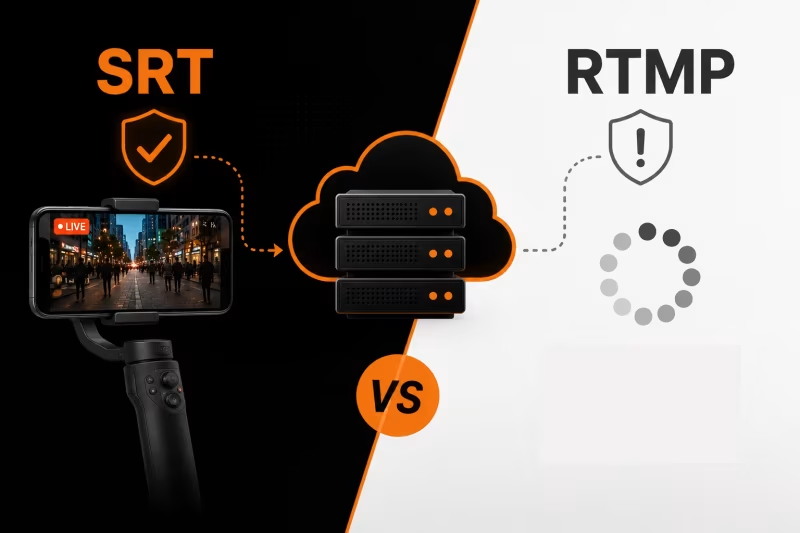
SRT vs RTMP: Which Protocol Should You Use for IRL Streaming?
RTMP or SRT—which protocol is best for IRL streaming? Learn the key differences, why SRT performs better on mobile networks, when RTMP still makes sense, and how to choose the right option for a more stable stream with fewer disconnects.
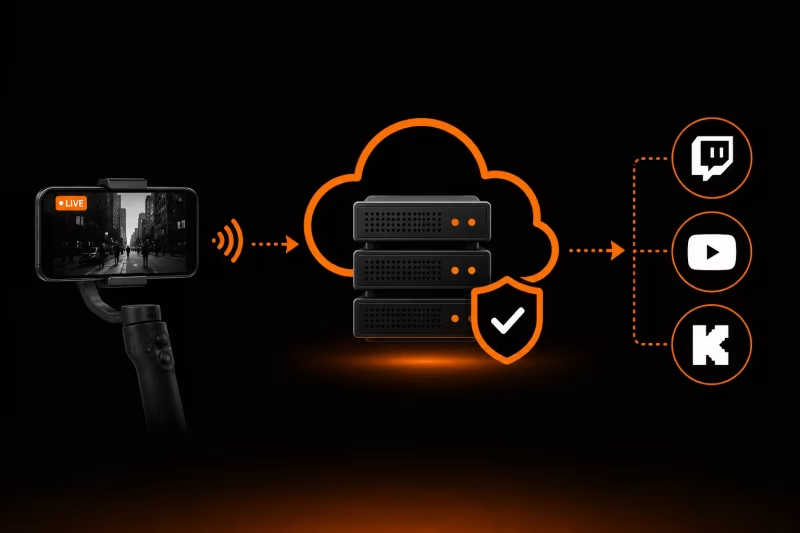
What Is an Ingest Server? The Key to Stable IRL Streaming
Learn how an ingest server keeps your IRL stream stable, protects against connection drops, and powers advanced features like Cloud OBS, multistreaming, and remote production.