OBS Studio: The Complete Guide to the Best Free Live Streaming Software (2026)
Reese Team
Editor at Reese Live
Short answer: OBS Studio (Open Broadcaster Software) is a free, open-source application for video recording and live streaming, available for Windows, macOS, and Linux. It's the closest thing the streaming world has to an industry standard because it combines professional-grade tools — scene composition, a full audio mixer, filters, plugins, and native support for RTMP, SRT, and WebRTC — with zero cost, no watermark, and no subscription tier. If you're searching for live streaming software for PC, OBS is where almost every serious streamer starts. The one place it falls short is ChromeOS: it has no official Chromebook build, and that changes how you should think about streaming from one.
This guide covers what OBS actually does, why it's usually the right free encoder for live streaming, what hardware it needs, how (and whether) it runs on a Chromebook, and how to configure it correctly for your first stream.
What Is OBS Studio?
OBS Studio is open-source software released under the GNU General Public License and maintained by a community of volunteer developers under the OBS Project. Unlike commercial streaming tools, there's no company selling OBS itself — it's built and maintained by the same community that uses it, funded through donations, and hosted publicly on GitHub. That matters practically: there's no premium tier hiding features behind a paywall, no forced watermark, no cap on stream length or export resolution.
At its core, OBS does two things: it composes a video signal out of multiple sources (your webcam, your screen, images, browser overlays, media files), and it encodes that signal into a stream you send out to a destination — Twitch, YouTube, Kick, or a custom server like REESE Live.
Worth knowing: several other "free" streaming tools you'll come across, like Streamlabs Desktop, are actually built on top of OBS's open-source codebase, with their own interface and bundled features layered on top. OBS itself remains the underlying engine for a large part of the streaming software ecosystem.
Why Streamers Choose OBS Studio
It's free forever, not a free trial. No account, no license key, no feature lock.
It's genuinely cross-platform. Native builds for Windows, macOS (Intel and Apple Silicon), and Linux — with consistent scene collections and settings across all three.
No output restrictions. No watermark, no resolution cap, no maximum stream duration.
A massive plugin ecosystem. From StreamFX to advanced chroma-key tools to third-party protocol outputs, most gaps in the base app are filled by community plugins — and OBS now ships with a built-in Plugin Manager to install and update them without leaving the app.
Works with virtually any destination. Any platform or custom server that accepts RTMP, SRT, or WHIP (WebRTC) ingest can receive an OBS stream.
A huge support community. Because so much of the industry runs on OBS, troubleshooting help, tutorials, and pre-built scene templates are everywhere.
Core Features, Explained
Scenes and Sources
A "scene" in OBS is a saved layout — a specific arrangement of "sources" like your webcam, screen capture, images, text, or browser overlays. Most streamers build several scenes (a "Starting Soon" screen, a main gameplay layout, a "Be Right Back" screen) and switch between them live with a single click or hotkey.
Audio Mixer
OBS includes a full mixer with per-source volume control, mute, and audio filters (noise suppression, noise gate, compressor, limiter). The 32.1 release rebuilt this mixer with per-track VU meters and NVIDIA RTX-based voice activity detection for cleaner noise suppression on supported hardware.
Filters and Transitions
Visual filters — chroma key (green screen), color correction, sharpening, LUTs — can be applied per source. Scene transitions (cut, fade, stinger) control how OBS moves between layouts.
Plugins and Scripting
Beyond the built-in Plugin Manager, OBS supports a scripting API (Lua and Python) for anyone who wants to automate scene switching, build custom overlays, or integrate with external hardware like stream decks.
Virtual Camera
OBS can output your composed scene as a virtual webcam that other apps — Zoom, Google Meet, Discord — can pick up like a regular camera. This is how streamers get custom overlays and scene switching inside a video call.
Multi-Track and Hybrid Recording
OBS can record multiple audio tracks simultaneously (so mic, game audio, and music stay separate for editing later) and supports Hybrid MP4/MOV recording, which produces files that stay playable even if OBS is closed unexpectedly mid-recording.
Streaming Protocol Support: RTMP, SRT, and WebRTC
This is where OBS's evolution really shows. For most of its history, OBS only sent RTMP. That changed with OBS 28 in September 2022, which added native SRT (and RIST) output — no third-party plugin required — giving streamers built-in packet-loss recovery for unstable connections. OBS 30 went further, adding WHIP output for sub-second-latency WebRTC streaming to compatible services, and OBS 32.1 added WebRTC simulcast, letting a single OBS output serve multiple quality levels at once for viewers on different connection speeds.
In practice, this means an OBS user today can choose the transport that fits their situation: RTMP for simplicity on a stable connection, SRT for resilience on cellular or unpredictable Wi-Fi, or WHIP/WebRTC where ultra-low latency matters more than anything else. If you want the deeper technical comparison between RTMP and SRT specifically — including why SRT tends to be the better call once you're off a wired connection — that's worth reading on its own.
OBS Studio System Requirements (2026)
OBS itself is lightweight to install, but real-time encoding is CPU- and GPU-intensive. The table below separates what OBS needs to simply run from what you need for smooth 1080p60 streaming.
Minimum (basic use) | Recommended (1080p60 streaming) | |
|---|---|---|
Windows | Windows 10 (64-bit), dual-core CPU, DirectX 10.1-compatible GPU, 4 GB RAM | Windows 10/11, quad-core CPU (Intel Core i7 8th-gen / Ryzen 5 or newer), 8–16 GB RAM, GPU with hardware encoder (NVENC/AMF/QuickSync) |
macOS | macOS 13 or newer*, dual-core Intel or Apple Silicon (M1+), Metal-capable GPU, 4 GB RAM | Apple Silicon M1 Pro or newer, 16 GB RAM (VideoToolbox hardware encoding handles most of the load) |
Linux | Ubuntu 20.04 or newer (or equivalent), dual/quad-core CPU, OpenGL 3.3-compatible GPU, 4 GB RAM | Quad-core CPU, 8–16 GB RAM, NVIDIA/AMD GPU with proprietary drivers installed for NVENC/AMF |
*As of the OBS 32.2.x line, macOS 12 (Monterey) is no longer supported due to a Qt framework update — Monterey users need to stay on the OBS 32.1.2 branch.
A few practical notes that matter more than the raw spec sheet:
Hardware encoding is the single biggest performance factor. It offloads video compression to a dedicated chip on your GPU instead of your CPU, which is what lets you game and stream at the same time without stutter. NVIDIA NVENC (GTX 600 series and newer), AMD AMF (Radeon RX 400 series and newer), and Intel QuickSync all handle this job well on modern hardware.
RAM matters more than people expect. OBS itself only uses a few hundred MB, but the games, browsers, and chat apps running alongside it are usually what pushes a system past 8 GB.
A "compatible" system doesn't guarantee good performance. OBS's own documentation is explicit that meeting the minimum spec means the app will open — not that it will stream cleanly at your target resolution and frame rate.
Live Streaming Software for PC: Windows vs. macOS vs. Linux
If your search brought you here because you're specifically comparing "live streaming software for PC" options, the honest answer is that OBS behaves differently — but works well — on all three major desktop platforms:
Windows has the widest hardware support, the largest plugin library, and the most tutorials, simply because it's where the largest share of the streaming and gaming audience is. If you're building a PC specifically for streaming, this is the safest platform for compatibility.
macOS runs OBS natively on both Intel and Apple Silicon, and Apple Silicon Macs get excellent, efficient hardware encoding through VideoToolbox — good stream quality without hammering the CPU. The tradeoff is a smaller plugin ecosystem, since many community tools are Windows-first.
Linux is actually where a meaningful share of OBS's own core developers work day to day, so the native experience is solid. The friction point is usually GPU drivers: NVENC support depends on having the proprietary NVIDIA driver installed rather than the open-source default, which trips up newcomers.
None of these is objectively "the" right choice — it comes down to what you're already running and what your GPU supports.
Is OBS Studio Really the Best Free Encoder for Live Streaming?
"Free encoder for live streaming" usually turns up a short list of names. Here's how OBS stacks up against the two most common alternatives people compare it to:
OBS Studio | Streamlabs Desktop | Restream Studio | |
|---|---|---|---|
Cost | Free, no tiers | Free, with optional paid "Ultra" upgrade | Free tier, paid tiers for extended features |
Runs locally or in browser | Local app | Local app (built on OBS's engine) | Browser-based |
Platform support | Windows, macOS, Linux | Windows, macOS | Any OS with a browser |
Resource usage | Lean — you control every feature you enable | Heavier — ships with extra overlays, widgets, and alerts by default | Depends on browser/device, generally lighter on setup |
Plugin ecosystem | Large, community-driven | Smaller, curated within its own app | Limited — mostly built-in integrations |
Protocol support | RTMP, SRT, WHIP/WebRTC | RTMP, SRT | Primarily WebRTC/RTMP via its own infrastructure |
Best for | Full control, custom setups, technical streamers | Beginners who want alerts and overlays pre-built | Streaming from a low-power device or browser-only setup |
There's no wrong answer here — Streamlabs Desktop is a genuinely good choice if you want alerts and widgets working out of the box without configuring them yourself, since it's built directly on OBS's engine. But if you want the leanest possible resource footprint, the largest plugin ecosystem, or you're on Linux, OBS Studio itself remains the more flexible option.
Streaming Software for Chromebook: Does OBS Studio Actually Work?
This is worth answering honestly rather than optimistically, because it changes what you should actually do.
OBS Studio does not have an official ChromeOS build. The only way to run it on a Chromebook is through the Linux (Crostini) container available on supported models, which installs a lightweight Debian environment alongside ChromeOS. From there, you can install OBS the same way you would on any Linux desktop.
In practice, this comes with real limitations:
Screen and window capture inside the Linux container is inconsistent. Because the Linux environment runs sandboxed from the rest of ChromeOS, capturing your Chrome browser tabs or Android apps often doesn't work the way it would on a full Linux install.
Most Chromebooks aren't built for real-time encoding. They typically use low-power CPUs with no dedicated GPU, which is exactly the combination that struggles most with OBS's encoding load.
Driver and codec support inside Crostini is limited, so hardware-accelerated encoding (which is what makes OBS usable on modest hardware elsewhere) often isn't available at all — leaving you dependent on slower CPU-only encoding.
What this means for a Chromebook streamer in practice:
If your stream is a simple webcam-and-mic setup (a talking-head podcast, a study session, a simple presentation) without screen capture, OBS through Linux/Crostini can work, though performance will be modest.
If you need to capture your screen, browser tabs, or a game running on the Chromebook itself, a browser-based studio (running natively in Chrome, no Linux container required) is the far more reliable option — it's built for exactly this environment.
If you need OBS's full feature set specifically, the more dependable path is pairing your Chromebook with a phone as an external camera and streaming through a browser tool, or using a separate PC/laptop as your encoding device while the Chromebook handles chat, notes, or overlays.
The short version: OBS can technically run on some Chromebooks, but it isn't designed for ChromeOS, and Chromebook hardware isn't designed for real-time encoding. If your primary device is a Chromebook, it's worth being clear-eyed about that combination before building a whole setup around it.
Getting Started: How to Set Up OBS Studio for Your First Stream
Download and install OBS from the official OBS Project website for your operating system. Avoid third-party download mirrors.
Run the Auto-Configuration Wizard the first time you open it. OBS will benchmark your hardware and suggest a starting resolution, frame rate, and encoder.
Create a scene and add sources. Start with a Display Capture or Window Capture for your screen, plus a Video Capture Device for your webcam.
Set up your audio. Add your microphone as an Audio Input Capture source, and use the mixer to set levels before you go live — not after.
Configure your output settings under Settings → Output. Choose your encoder (hardware encoder if available), set your bitrate, and choose your rate control mode (CBR is standard for live streaming).
Add your stream destination. Under Settings → Stream, select your platform or choose "Custom" and enter the server URL and stream key from your destination — for example, your RTMP or SRT ingest details from REESE Live.
Do a private test stream before going live publicly, checking both video quality and audio sync.
Go live, and keep an eye on the Stats panel (View → Stats) for dropped frames during your first few sessions.
Recommended OBS Settings for Better Streams
Resolution and frame rate: 1080p30 is the safest default for most connections and hardware. 720p60 is often a better choice than 1080p60 if your upload bandwidth or CPU is limited — motion looks smoother at a lower resolution than a higher resolution that keeps dropping frames.
Bitrate: As a starting point, OBS's own default for newer versions sits around 6000 Kbps for 1080p — adjust down if your upload speed can't sustain it consistently, since a bitrate above your real upload capacity is the most common cause of dropped frames.
Keyframe interval: Set to 2 seconds. Most platforms require this for reliable stream ingestion.
Encoder choice: Use a hardware encoder (NVENC, AMF, or QuickSync) whenever your GPU supports it — it dramatically reduces CPU load compared to the software x264 encoder, which matters most if you're also running a game.
Rate control: CBR (Constant Bitrate) is the standard choice for live streaming, since it keeps your output bandwidth predictable.
Common OBS Issues and How to Fix Them
Dropped frames during streaming: Usually a network issue, not an OBS issue — your upload bitrate is exceeding what your connection can sustain. Lower your bitrate, or if you're on an unstable connection (mobile hotspot, public Wi-Fi), consider streaming into a service that ingests over SRT rather than RTMP, since SRT is specifically built to recover from the packet loss that causes this.
High CPU usage / encoding overload warnings: Switch from the x264 software encoder to a hardware encoder, or lower your encoding preset if you're already on hardware encoding.
Audio out of sync: Check your audio source's sync offset in Advanced Audio Properties, and make sure you're not running multiple audio devices with conflicting sample rates.
Black screen on game capture: Switch between "Capture specific window" and "Capture any fullscreen application" modes, and try running OBS as administrator on Windows so it has the same permission level as the game.
Crashes on startup: Update your GPU drivers first — this resolves the majority of startup crashes — and try launching OBS in Safe Mode (which disables third-party plugins) to isolate the cause.
OBS Studio + REESE Live: A Solid Pair
Since OBS supports both RTMP and SRT natively, it works with REESE Live's ingest without any extra plugins or workarounds. If you're streaming from a stable, wired setup, RTMP into REESE Live works immediately. If your connection is less predictable — a laptop on Wi-Fi that isn't rock-solid, for instance — switching OBS's output to SRT gets you built-in packet-loss recovery before your stream even reaches REESE Live's servers, where drop protection picks up anything that still slips through.
Conclusion
OBS Studio earns its reputation honestly: it's free, actively developed, genuinely cross-platform, and flexible enough to go from a simple webcam stream to a full multi-camera production. For live streaming software on PC — Windows, macOS, or Linux — it's still the most reasonable default, and its native RTMP, SRT, and WebRTC support means it fits almost any streaming setup you build around it. The one place to manage expectations is ChromeOS: without an official Chromebook build, OBS is a workaround there, not a first choice, and a browser-based tool will usually serve a Chromebook better.
Frequently Asked Questions
Is OBS Studio really completely free? Yes. There's no paid tier, no watermark, and no feature lock. It's funded through community donations, not software sales.
Does OBS Studio work on a Chromebook? Not officially. It can run through the Linux (Crostini) environment on supported Chromebooks, but screen capture is unreliable and most Chromebook hardware isn't built for real-time encoding. A browser-based streaming tool is generally more reliable on ChromeOS.
What's the best free encoder for live streaming besides OBS? Streamlabs Desktop is the most common alternative — it's actually built on OBS's own engine, with pre-built alerts and overlays layered on top, which makes it a reasonable choice for beginners who don't want to configure everything manually.
Do I need a gaming GPU to use OBS Studio on PC? No, but it helps significantly. A GPU with a hardware encoder (NVENC, AMF, or QuickSync) takes the encoding load off your CPU, which is what makes streaming while gaming feasible on mid-range hardware.
Does OBS support SRT streaming? Yes, natively, since OBS 28 (released in 2022). No third-party plugin is required — SRT is a built-in output option alongside RTMP and WHIP/WebRTC.
Want a server that accepts both RTMP and SRT from OBS Studio, with drop protection built in? Create your REESE Live account and get your stream key in minutes.
Read next
View all posts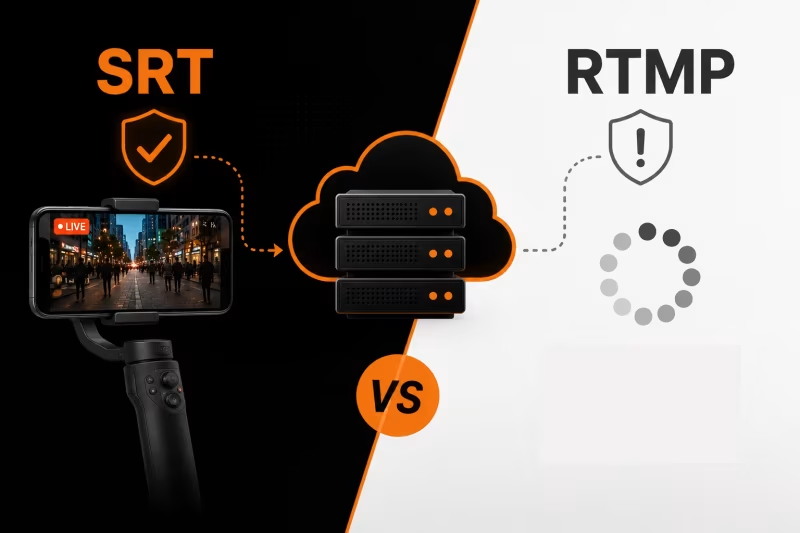
SRT vs RTMP: Which Protocol Should You Use for IRL Streaming?
RTMP or SRT—which protocol is best for IRL streaming? Learn the key differences, why SRT performs better on mobile networks, when RTMP still makes sense, and how to choose the right option for a more stable stream with fewer disconnects.
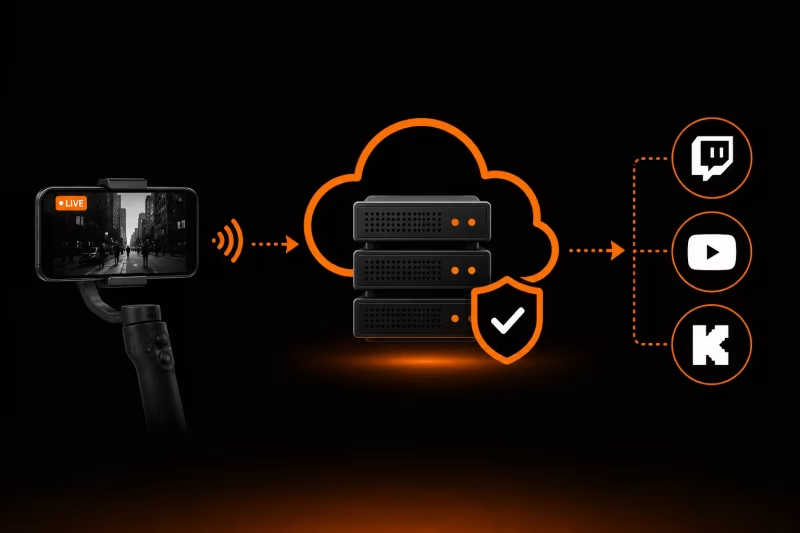
What Is an Ingest Server? The Key to Stable IRL Streaming
Learn how an ingest server keeps your IRL stream stable, protects against connection drops, and powers advanced features like Cloud OBS, multistreaming, and remote production.
How to Stream on Twitch and YouTube at the Same Time
How to broadcast on Twitch and YouTube in the same live stream, manage both chats, and avoid overloading your PC or internet.